

Build a macOS Style Portfolio Website
I tested the same portfolio prompt in 3 AI tools. One nailed It. One failed.

Standard portfolio websites are boring and forgettable. If you want to stand out as a non-technical founder or creative, you need a portfolio that starts conversations with an interface that forces interaction.
This guide gives you the exact prompt to build a macOS inspired desktop website, complete with draggable windows, a working terminal and a playable solitaire game without writing a single line of code.
Sounds like something that would take weeks to build.
I did it with one prompt.
Well, technically I tried the same prompt in three different AI coding tools: v0, Lovable and Google AI Studio. The results were... interesting.
One nailed it. One struggled. One surprised me.
Here’s a sample of what the prompt can create in v0.app
Here’s the exact prompt I used.
It’s long and detailed on purpose. The more specific you are, the better results you’ll get.
Copy. Paste. Ship!
# Build a macOS inspired desktop portfolio website with placeholder content
Create a fully interactive portfolio website that simulates a macOS desktop environment in the browser. The site should feel like a real operating system where visitors explore the portfolio by opening apps, browsing folders and discovering hidden features.
## Core Features
### Desktop environment
- full-screen desktop with macOS style wallpaper
- top menu bar with logo (left), active app name (center), clock and system icons (right)
- bottom dock with app icons, magnification effect on hover, centered floating design
- draggable desktop icons with visual selection states
- double-click icons to open, single-click to select
### Window management
- draggable windows with macOS style traffic light buttons (red=close, yellow=minimize, green=maximize)
- click any window to bring it to front (z-index stacking)
- smooth animations for open/close/minimize (scale + fade transitions)
### File system & folder structure
Create a hierarchical file system with these folders and files:
- readme.md file (bio, photo, links)
- demo folder (work history folders -> job.md)
- projects folder (substack post sample)
- system folder (side projects)
- resume.pdf file
- trash bin
### Apps to build
1. Finder: file browser with sidebar navigation, grid/list view toggle, breadcrumbs, search functionality
2. Terminal: interactive command line with dark theme, command history (up/down arrows), monospace font, blinking cursor and these commands:
1. `help` - list all commands
2. `about` - opens readme
3. `ls` - list current directory contents
4. `ls -a` - show hidden files
5. `cd [folder]` - navigate folders
6. `cat [file]` - display file contents
7. `clear` - clear terminal
9. easter eggs (details below)
3. Email client: display testimonials/recommendations as inbox emails with sender, subject, preview.
4. PDF viewer: display resume with download button
5. Solitaire game: fully playable with timer, and scoring
### Easter eggs
- fun easter egg terminal commands like `cowsay`, `fortune`, `matrix`, `coffee`
- konami code easter egg (up up down down left right left right B A)
- keyboard shortcuts
- terminal secret commands and modes
- smooth micro-interactions throughout
- hidden files that appear with `ls -a`
### Design requirements
- monochrome or minimal color palette with subtle accents
- clean, modern interpretation of macOS aesthetic
- smooth animations and transitions everywhere
- responsive design that works on tablets (desktops primarily)
- icons for folders, files and apps
Why This Prompt Works
To get high-end results from AI, you must stop be specific. It follows principles that make AI coding tools perform better:
1. Specific structure Instead of “build me a portfolio,” the prompt breaks down exactly what a macOS desktop needs, menu bar, dock, windows, file system, apps.
2. Clear hierarchy The prompt uses headers and bullet points to organize requirements. AI tools parse structured text better than walls of prose.
3. Concrete examples Listing specific terminal commands (cowsay, fortune, matrix) removes ambiguity. The AI doesn’t have to guess what “easter eggs” means.
4. Design direction “Monochrome or minimal color palette” and “clean, modern interpretation” tell the AI what aesthetic you’re after.
When you give AI tools clear, structured instructions, they deliver better results. That’s the core of Prompt Driven Development.
How to Customize Your Website
The prompt generates a working portfolio with placeholder content. Here’s how to customize it:
1. Swap in your real content Replace the placeholder folders with your actual projects, work history, and bio. Use prompts to update the README.md file with your photo, links and personal introduction.
2. Add a Music Player app Create a window that displays a playlist or embeds your Spotify. It adds personality and gives visitors a reason to stay longer while browsing your work.
3. Build a Notes app for your writing If you have a Substack or blog, case studies or newsletter posts, display them as notes inside the macOS interface. Each note can be a separate markdown file visitors can browse.
4. Create a Settings app Let visitors toggle light/dark mode or choose from different wallpapers. It adds interactivity and shows attention to detail, qualities clients and employers notice.
5. Add a Messages app for contact Instead of a generic contact form, make it feel like visitors are sending you a direct message through the desktop interface. Link it to your calendar booking or email.
6. Personalize the wallpaper Upload a high-res image of your own and ask the AI to set it as the desktop background.
Next Step: Copy the prompt, paste it into v0.app (or your preferred tool) and watch it build your new portfolio in under 3 minutes.
Tool Showdown
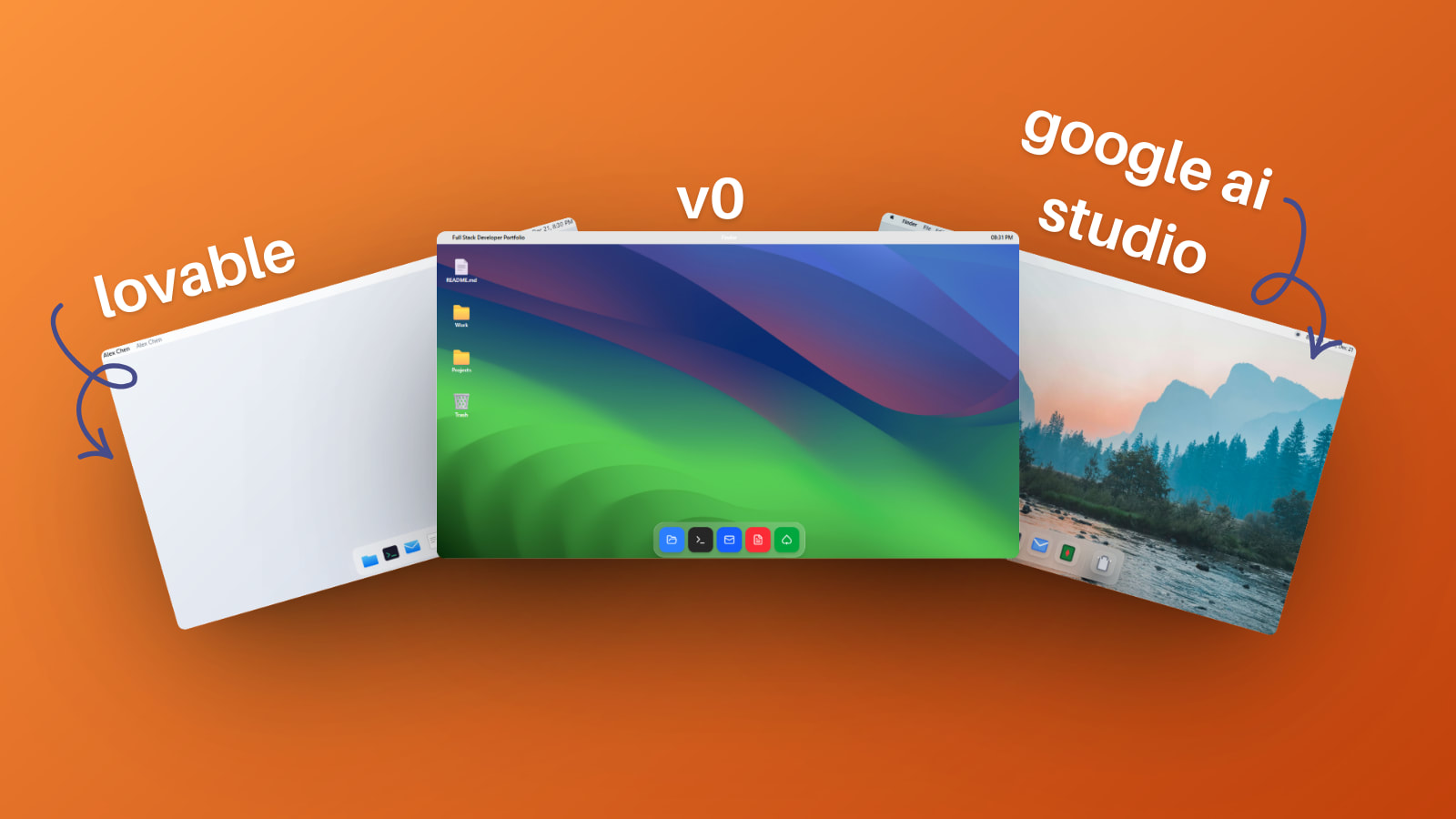
I tested this prompt across three leading tools. Here’s what happened:
1. v0.dev The Winner
Verdict: The only tool that nailed the premium feel.
Pros: Perfect macOS aesthetic, working terminal commands and a functional solitaire game.
Cons: Limited free trial, requires a subscription for heavy use.
v0 followed the prompt closely and handled the complexity without complaining. If you want the most polished result, this is the tool to use.
2. Google AI Studio A Close Second
Verdict: Strong logic, but lacks the “one-click” polish of v0.
Pros: Currently free to use and follows complex instructions well.
Cons: Didn’t follow every detail in the prompt, some features were simplified or skipped
For a free tool, this is impressive. If you’re experimenting or on a budget, Google AI Studio is a solid starting point.
3. Lovable The Struggle
Verdict: Avoid for this specific project. It had the hardest time with this prompt.
Pros: Good for simple CRUD apps.
Cons: Refused to build the solitaire game and missed the macOS aesthetic entirely.
This isn’t to say Lovable is a bad tool. It’s excellent for simpler projects. But this particular prompt pushed it past its comfort zone.
Have you tried this prompt and built your own version? I want to see it. Reply to this email or tag me on social. I’d love to share the best ones on my LinkedIn.
The small projects you actually get around to doing are sometimes underrated. Thanks for sharing! 🩷🦩
Hi Ciara, I watched the Bolt walkthrough about this. 😁 And I had to try it out, too. It was perfect, because I got so bored of building my portfolio site in the same webpage format, and I love this.
I actually did this in Bolt, but not from scratch. I asked Bolt to redesign my existing portfolio site to this OS format using the prompt in Bolt's demo: https://www.youtube.com/watch?v=9G1D266Vvu8.